
Edit Place Properties
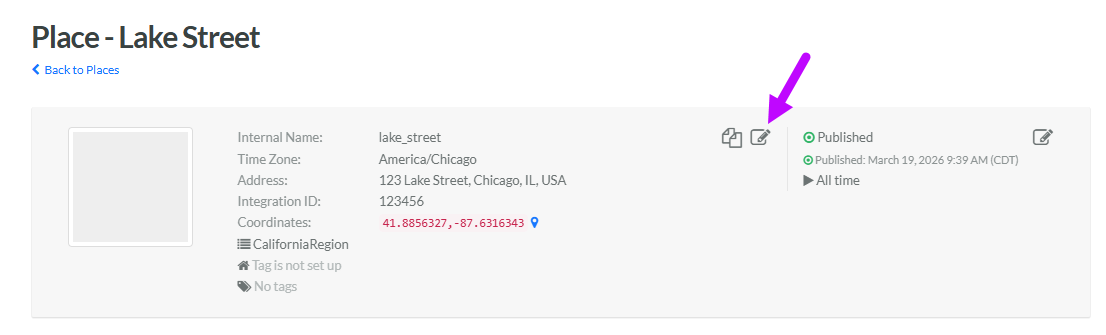
Many of the high-level properties of a Place are accessible from the header area of the Place Details screen.
To view and edit the high-level properties of a Place:
-
Select Admin from the top navigation bar, then select Locations > Places from the side navigation menu. The Places screen is displayed, with List View selected by default.
-
Search for and select the desired Place ( see
-
Within the header area, click the Edit icon. The Edit Place pop-up window is displayed.
-
Optionally, make the desired changes to the Place properties. For information on the available properties, see Create a Place.
-
Click Save.
